 Lough Labs
- Lough Labs
- CatchSolo
- Getting started
Getting started with CatchSolo
Everything you need for your first few weeks, in the order most coaches do it. Each part takes a few minutes, and you can come back to any of it whenever you like.
Set up your team
Create your account, sign in, and CatchSolo will ask you to Set up your team. You’ll choose:
- your code: football, hurling or dual
- the age group, from Under 6 to Under 18
- boys, girls or mixed
- a team name, and your club
- when your season starts and ends
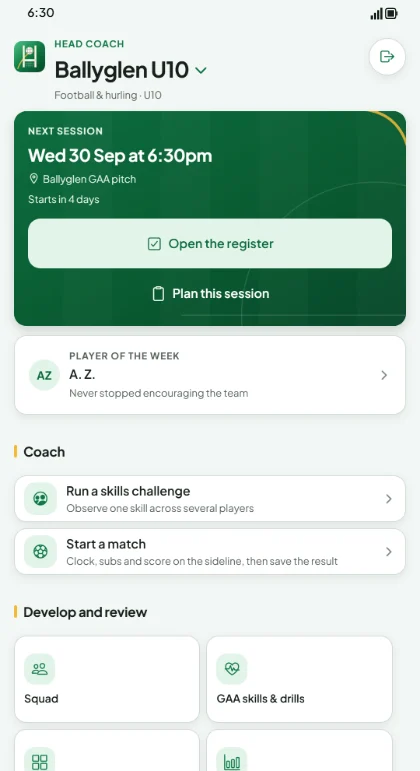
Tap Create team and you’ll land on your team’s home screen. The Get started card there walks you through the next few steps.
Joining a team someone else has already set up? Tap I have an invitation and paste the code or link your head coach sent you.
Add your players
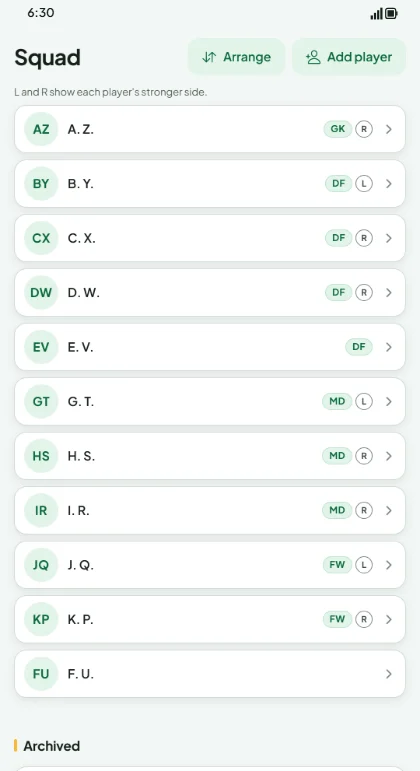
As head coach, open Squad and tap Add player. CatchSolo keeps things simple on purpose: a player is their initials (like JMcG) and their year of birth. That’s all you need.
- Pick their stronger foot or hand, or leave it as Not sure yet.
- From Under 10 up, you can choose up to three preferred positions. They show on your squad list as GK, DF, MD or FW.
- Guardian and emergency contacts are optional, and you can skip them for now.
- You can add a player’s name only when a parent or guardian has agreed to it. Initials work perfectly well on their own.
Use Arrange to put your squad in whatever order suits you.
Plan a session
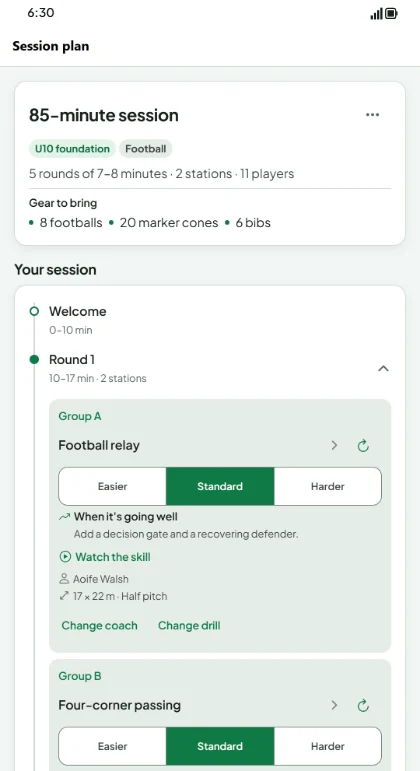
First, add your training times so CatchSolo knows when you train. Then tap Plan a session, pick the session, and follow three short steps:
- Choose players: who’s coming along.
- Set resources: how many coaches, what equipment and how much space you have. Save these as your defaults and you won’t need to enter them again.
- Review draft: CatchSolo builds a plan with drills and group sizes suited to your age group.
Swap any drill you don’t fancy with Change drill, then tap Confirm plan. Every drill comes with a diagram and coaching points, so you can check it on your phone at the pitch.
Take the register, even with no signal
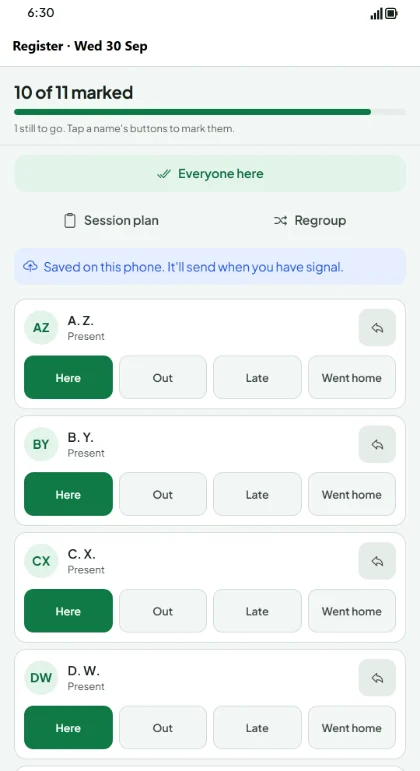
Lots of pitches have no signal, so the register is built to work without it. Open the app once while you still have signal, at home or in the car park, so your squad is on your phone.
At training, tap Open the register and mark each player Here, Out, Late or Went home. Tapped the wrong one? Just undo it.
Everything is saved on your phone straight away and sends itself when you’re back in signal. There’s nothing else you need to do.
Match day and subs
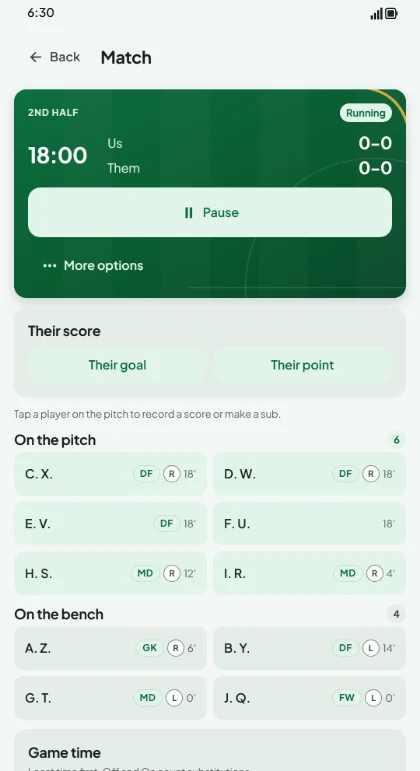
Tap Record a match and add the opponent, date and venue. Then open Match clock and subs:
- Start the clock at throw-in, pause it when you need to, and start the second half.
- Your players are shown On the pitch and On the bench. Tap two players to swap them.
- The Game time table shows who has played least, so everyone gets a fair run.
Got a big squad, or running an in-house game? Tap Split into two teams to make two balanced teams, or stream them by ability, and keep a score for each.
Afterwards, add the final score and who played, and save. It’s shared with the other coaches on your team.
Invite your assistant coaches
As head coach, open Invite a coach from your team’s home screen. Choose to share a link, or lock the invitation to one email address, and pick how long it lasts: 3 or 7 days. Tap Create and share and send it however you normally would.
Your assistant taps the link, or chooses Join a team and pastes the code, and they’re in. They can take the register, plan sessions and record matches with you.
Contact details and medical notes stay with the head coach unless you choose to share them. You can give an assistant access, or remove someone from the team, in Team settings.
Start a new season
When the year turns over, go to Team settings and tap Start a new season. You’ll be asked:
- the new season’s dates
- which age group you’re moving to. Most teams move up one each year.
- who’s staying. Untick anyone who has moved on.
Last season’s sessions, matches and notes stay safely in its history. Players who leave keep their history too, and their contact and medical details are deleted 30 days after they go. Removed someone by mistake? You can bring them back from their page.